Many Acumatica users who have adopted the Modern UI have reported issues when attempting to export data to Excel while using Microsoft Edge. Instead of downloading the spreadsheet, users may see an error message, nothing may happen at all, or the export window may appear to be blocked. The good news is that this is usually not an Acumatica issue. In most cases, the behavior is caused by Microsoft Edge settings that interfere with how Acumatica delivers Excel files to the browser.
Why This Happens
Microsoft Edge includes features designed to open Microsoft Office documents directly within the browser. While helpful in some scenarios, this setting can conflict with Acumatica’s export functionality.
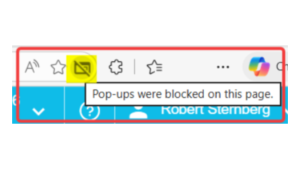
Additionally, Edge’s pop-up blocker may prevent Acumatica from generating the Excel download window. When either of these settings is enabled, users may be unable to export Generic Inquiries, Reports, Project Budgets, Financial Data, or other Acumatica screens to Excel.
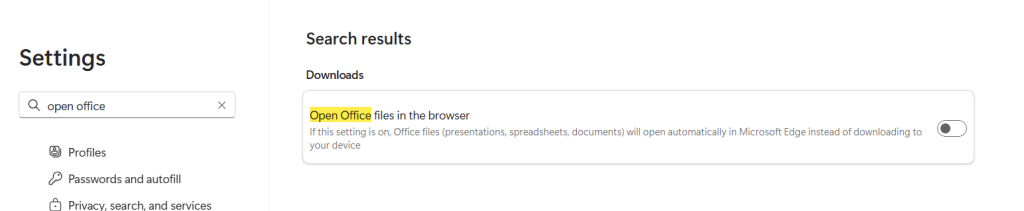
Solution 1: Disable “Open Office Files in the Browser”
Follow these steps in Microsoft Edge:
Open Microsoft Edge.
Click the three dots in the upper-right corner.
Select Settings.
In the search bar, type Open Office files.
Locate the setting labeled Open Office files in the browser.
Turn this setting Off.
After updating the setting:
Refresh Acumatica.
Log out and back in if necessary.
Attempt the Excel export again.
In many cases, this resolves the issue immediately.
Solution 2: Allow Pop-Ups for Acumatica
If exports still fail, Edge may be blocking the download window.
To check:
Navigate to your Acumatica site.
Look at the right side of the address bar.
Search for the pop-up blocker icon (a small window with a slash through it).
Click the icon.
Select Allow pop-ups and redirects for your Acumatica site.
Reload the page.
Once pop-ups are allowed, try exporting again.
Additional Troubleshooting Tips
If the issue persists:
Verify that downloads are not being blocked by your organization’s security software.
Test the export in another browser such as Google Chrome.
Clear browser cache and cookies.
Confirm that other users can successfully export from the same Acumatica tenant.
If multiple users are experiencing the same issue, your IT team may need to review browser policies being applied through Microsoft Edge management settings.
Final Thoughts
As more organizations adopt Acumatica’s Modern UI, browser settings have become a more common source of support tickets. Fortunately, Excel export issues in Microsoft Edge are often resolved in just a few minutes by adjusting Office file handling and pop-up settings.
If your users are unable to export data from Acumatica to Excel, these two browser settings should be the first place to look before escalating the issue to support.
Senior Marketing Manager & Partnerships Leader at Crestwood Associates | MBA Candidate, University of Miami | ERP, AI & Business Applications GTM Strategy