Recently, we experienced an issue at Crestwood where a standard update broke our CRM Outlook integration. When employees learned how to update Outlook with the latest security patches, it inadvertently disabled the Microsoft Dynamics 365 CRM Outlook Client.
Problem:
After installing the recent Outlook Security Update, when you attempt to get to your CRM information via Outlook it remains blank and then you get a message saying, “Waiting for a page to be retrieved from a CRM server…”
This is the original article published by Microsoft Support to resolve the issue; however, I will walk you through the solution step-by-step.
Fix:
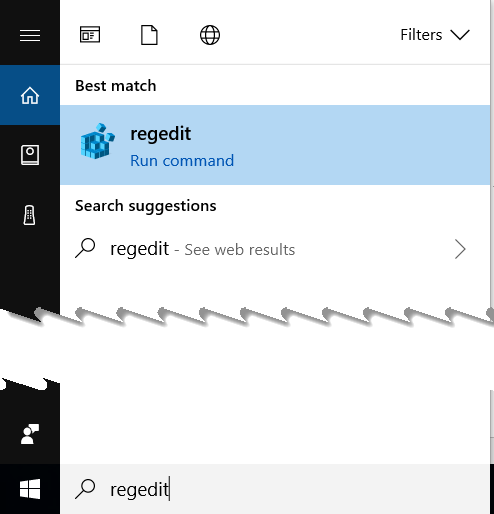
- Search for, “regedit” on your computer (tip: you may have to type in the entire word in order for it to show up):
- Open regedit – this is what is should look like:
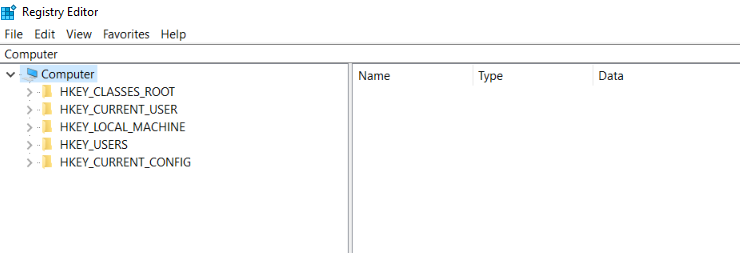
- Next, expand HKEY_CURRENT_USER > Software > Microsoft > Office > [either 10.0, 15.0 or 16.0 depending on your version of Microsoft Outlook] > Outlook > Security (your path may not look exactly like this – you may need to create one or two of these folders if they do not exist).

- Once you are in the Security section, create a new DWORD key by right-clicking in the screen and selecting New > DWORD (32-bit) Value

- Name it: “EnableRoamingFolderHomepages” and then modify it and set the value data to 2.
- That’s it, you’re done. Now, re-open Microsoft Outlook and it should work.
If you have questions or need some assistance, visit our support page for more help.