Business Central customization plays a crucial role in tailoring the system to meet your organization’s needs. One way to enhance efficiency is by adjusting field availability for specific roles through Business Central personalization. This guide walks you through customizing page layouts for a role and adding fields to a view in Microsoft Business Central.
Customizing Field Availability for a Role in Business Central
To change field availability for a role, follow these steps for Business Central customization:
- Navigate to Profiles (Roles): Choose the icon, enter Profiles (Roles), and then choose the related link.
- Select the Profile: Select the line for the profile that you want to customize pages for and then choose the Edit action.
- Customize Pages: Choose the Customize pages action. Business Central will open on a new browser tab for the selected profile with the Customizing banner activated.
- Make Changes: Customize pages according to the needs of the role or department in question in the same way as a user would do when personalizing. You can show fields that are in the page’s source table or extension tables but aren’t defined on the page object.
- Save Changes: When you have finished changing the layout on one or more pages, choose the Done button on the Customizing banner. Close the browser tab. The customization of pages is now recorded for the profile.
Business Central Personalization: Adding a Field to a View
Once you’ve customized a role, you may also need to modify views for better reporting and data access. Business Central personalization enables users to tailor their workspace further. Follow these steps to add a field:
- Open the Page: Navigate to the page where you want to add the field.
- Personalize the Page: Click on the Settings icon in the upper-right corner and select Personalize. This will activate the Personalizing banner.
- Add the Field: Click on the + Field action near the top of the page. This will open the Add Field to Page pane. From here, you can drag and drop the desired field to the position on the page where you want it to appear.
- Save Changes: Once you have added the field, click Done on the Personalizing banner to save your changes.
Example Use Case: Customizing Business Central for Auditors
If your auditors request a list of journals posted during a specific period and want the ‘created at’ date included along with the posted date, you will need to add the ‘created at’ date to the profile/role. This is because the ‘created at’ date is not normally available. Once added, you can then include it in the General Ledger Entries view.
1. Log into your Business Central Application, you will need a user account that has some administrative privileges.

2.Open Profile (Roles)

3. Select the Role you want to modify and right click on the three dots and choose Customize Pages:

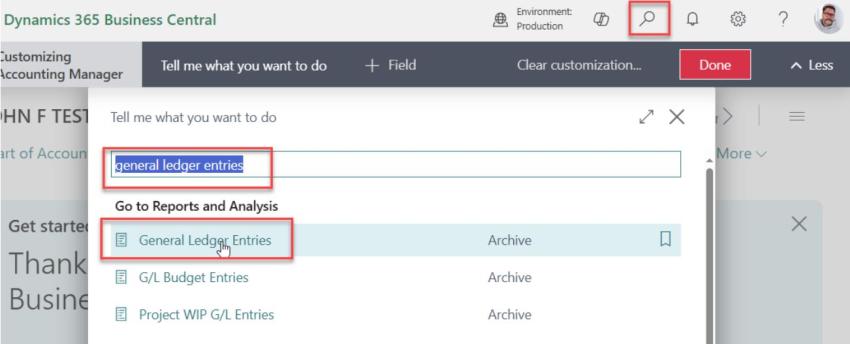
4.Now that we are in customization mode, click on the magnifying glass at the top of the screen. Type in the view you want to alter. In this case, we are going to alter the General Ledger Entries Screen. Type that in and then select it from the “GO TO REPORTS AND ANALYSIS” section.
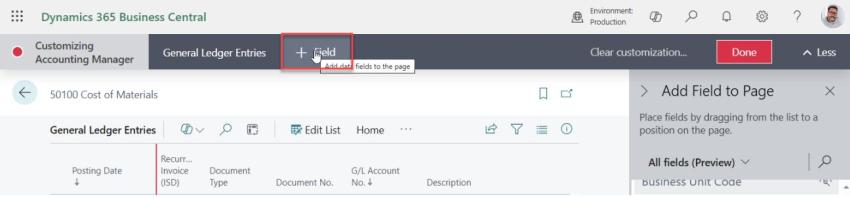
5.With the customization page open for General Ledger Entries, select the “+ Field” at the top of the page:
6. From the ADD FIELD TO PAGE pane, select the field you want to add, by just selecting the field, it auto places the field in the view:

7. At the Column Header for the field added to the view, click on the header and you will see a red mark, click on the red mark and choose ADD.
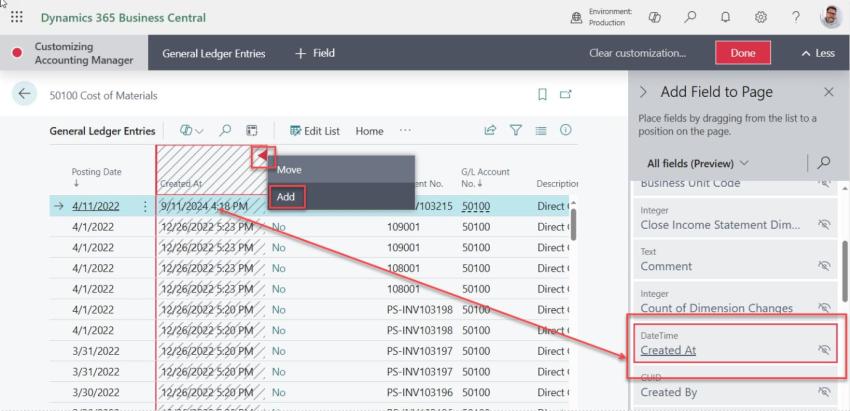
8. The field has now been added to the view. To complete this process, Click the red DONE button:

9. The system will notify you that the customization to the profile you chose has been completed, close this window and return to Business Central App.

10. From the Business Central Application, you can now search for your custom view, and you will see that the custom field you added is now part of your regular view:

Congratulations! You have just added a new field to your Profile/Role View!
Final Thoughts
Understanding Business Central customization and Business Central personalization allows businesses to tailor their ERP experience to meet operational needs effectively. By customizing role-based views and personalizing field visibility, you enhance usability and reporting accuracy within Microsoft Business Central.
Would you like help with advanced customizations or integrations? Contact our experts for tailored solutions!