In Acumatica ERP, access to information is controlled by the Security Role assigned to each user account.
A role is a set of access rights that allows the security administrator to define access to the system resources down to the level of each form field.
Example:
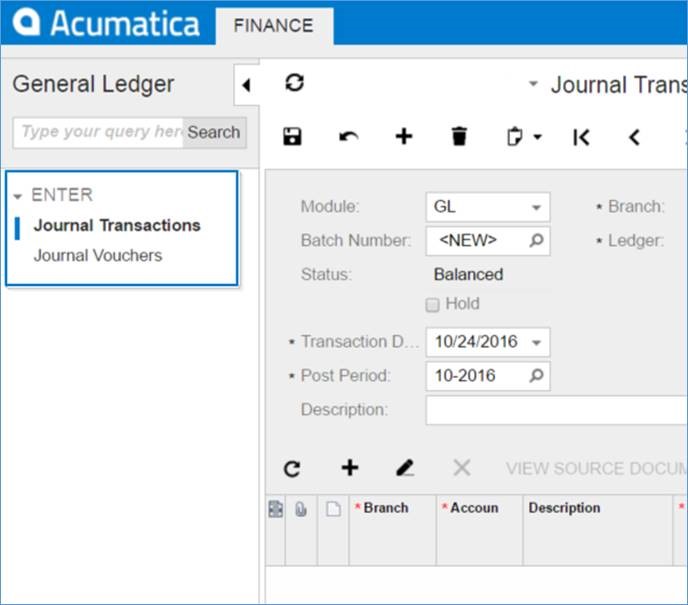
We have an Accounting Clerk, in charge of entering Journal Transactions and Journal Vouchers. However, all the other modules in the Financial suite are restricted.

The following chart illustrates a suggested workflow to implement this scenario.
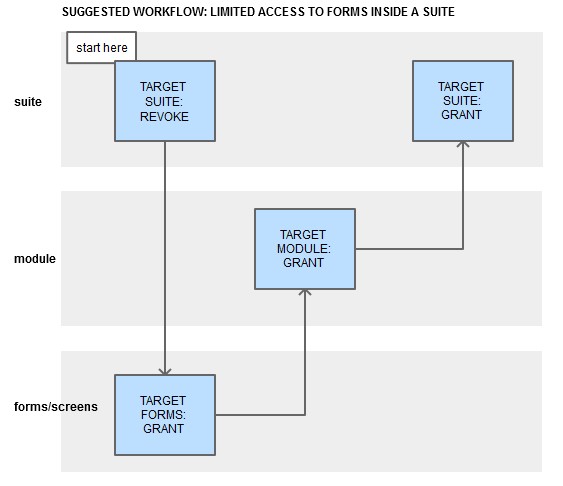
Here’s How to Create the Security Role:
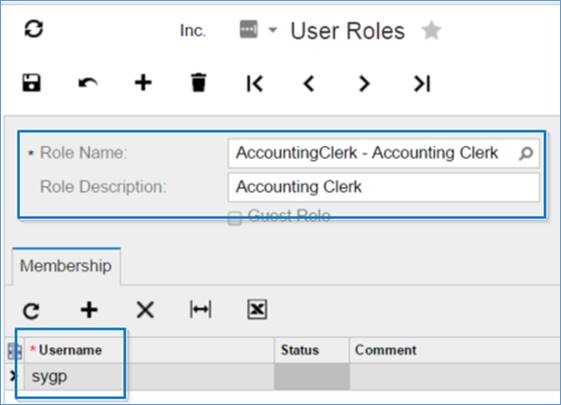
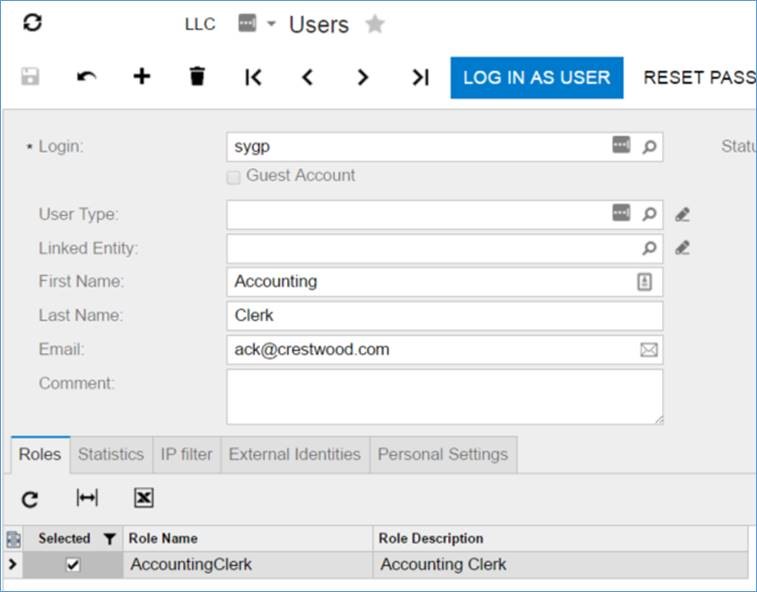
- Create a new User Role and make the target user account a member of this role.
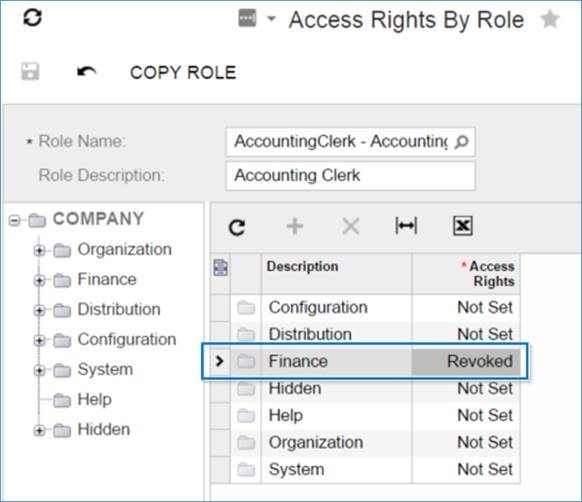
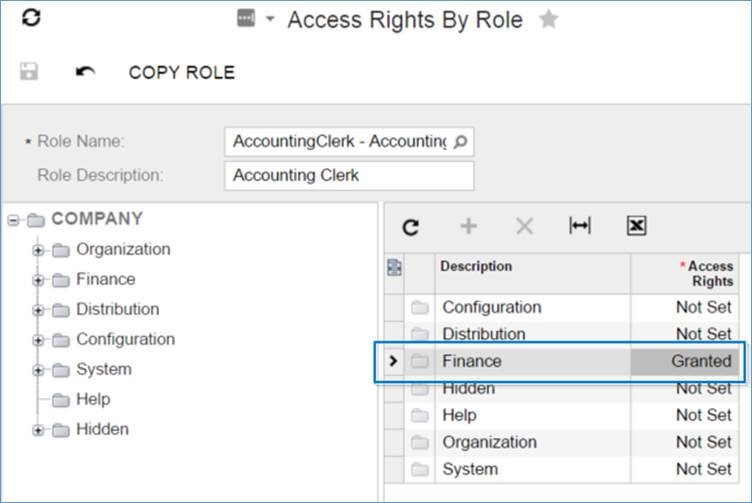
- Revoke the Access Rights of the Finance Suite.
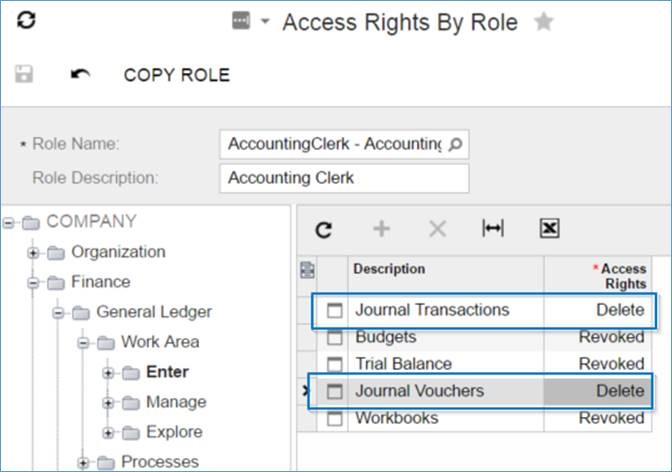
- Set the required Access Rights for the specific forms needed for the role. In this case, we are setting rights to Delete, which gives the role complete access to the 2 forms and their functionality.
- Grant access to the General Ledger (GL) module. This action will not change the access rights of the forms inside this module.
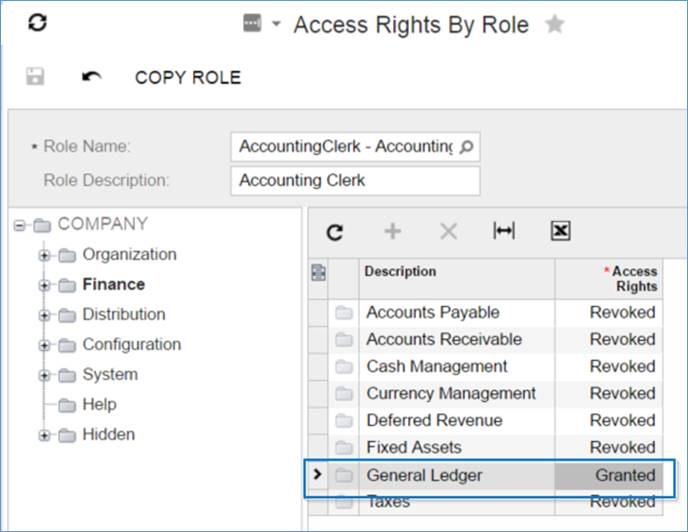
- Grant access to the Financial Suite.
- Use the “Log In As User” functionality to verify the access rights.
If the access rights work as expected, the user can only access the 2 forms required by the job role.
Acumatica offers a very robust and flexible security model able to adapt to the most stringent security compliance requirements. If you have questions or need some assistance, visit our support page for more help.