


There are many instances when you need different calendars for various uses. For example:
A calendar assigned to contract templates
Work calendars for 3rd party add-ons for JAMS (Manufacturing) & Payroll
Here’s how:
Go to: Organization > Organization Structure > Configure > Work Calendar
Once here, this form has common buttons in the toolbar are such as Save, Cancel, Add, Copy Paste, Delete and scroll options.

First, in the Summary area, define the Calendar ID, description and Time Zone. In this example, I have created a PST Calendar ID.
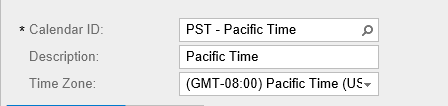
Note: The system is loaded with all the time zones which makes easier having this configured.

Next, move to the Calendar Setting Tab and define the working hours of the branch or its employees or business partners, depending on the particular calendar. The elements are grouped into seven rows, one for each day of the week.
In this screenshot, the calendar has a regular week of 48 hours with one hour for lunch, which really makes it 40 hours per week.

Last, you need to specify any exceptions to the normal calendar for the year. Go to the Exceptions tab and enter in any exceptions to the calendar. For example, holidays may preempt work days or shift them to days when the employees generally do not work. Exceptions may also include changes in working hours for particular days, such as early closings.
Our exceptions tab shows the New Year day and the Thanksgiving days:
Now you can use your new calendars in Acumatica.
If you have questions or need some assistance, visit our support page for more help.


