Microsoft Dynamics GP 2016 enhanced the procedure to place prepayments on purchase orders making it easier when requiring an upfront payment from customers.
Setup
First, you must setup prepayments in the purchase order processing window. Go to: Tools>Setup>Purchasing>Purchase Order Processing. Click to Allow Purchase Order Prepayments and Create manual prepayment from Purchase Order Processing. Choose a password (or leave blank for no password) and prepayment account.

Working with prepayments
Now, create a Purchase Order and enter a prepayment.
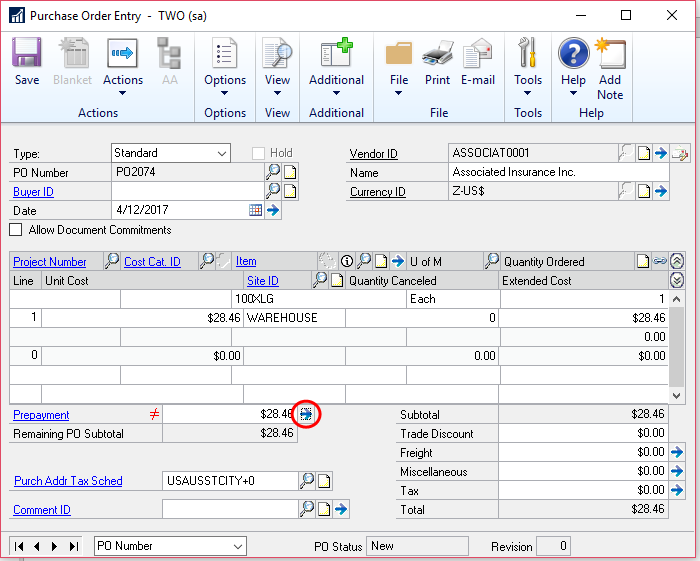
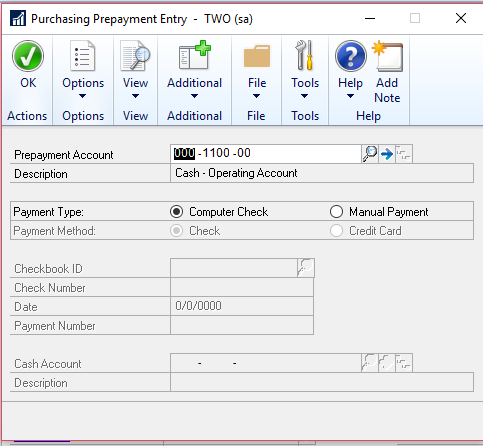
Next, click on the blue arrow next to your prepayment and select computer check or manual check.
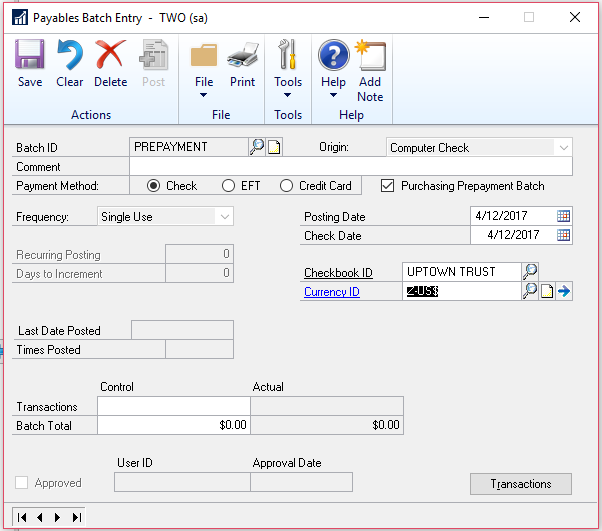
Now, create a payables batch. Go to: Transactions>Purchasing>Batches. Select computer check, checkmark Purchasing Prepayment Batch, and select your checkbook. Save the batch.
Lastly, edit the check batch. Go to: transactions>purchasing>edit check batch.
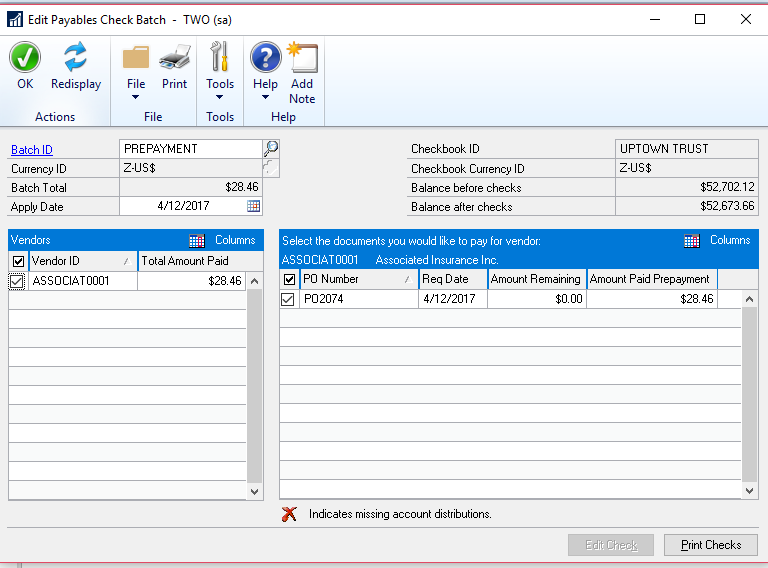
Dynamics GP will automatically bring up the check to be printed and posted.
If you have questions or need some assistance, visit our support page for more help.